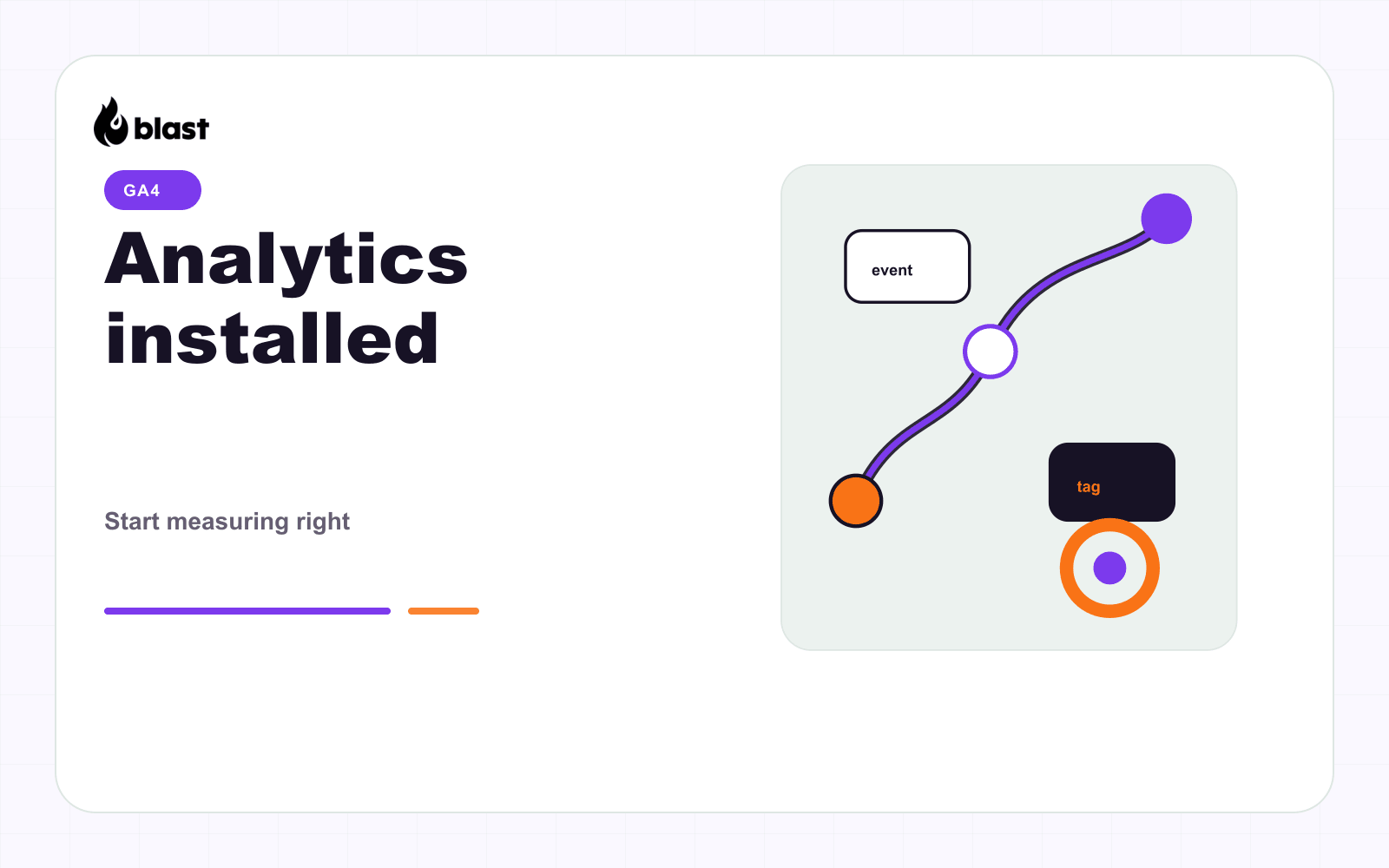
This is a clean GA4 installation path for most sites. It assumes you want a direct install (not via GTM).
1. Create a GA4 property
- Go to Google Analytics.
- Create a new GA4 property.
- Add a Web data stream and copy the Measurement ID (format:
G-XXXXXXX).
2. Install the GA4 tag
Place this in the <head> of every page:
<!-- Google tag (gtag.js) -->
<script async src="https://www.googletagmanager.com/gtag/js?id=G-XXXXXXX"></script>
<script>
  window.dataLayer = window.dataLayer || [];
  function gtag(){dataLayer.push(arguments);}
  gtag('js', new Date());
  gtag('config', 'G-XXXXXXX');
</script>
3. Verify in Realtime
Open your website in a new tab, then go to Reports > Realtime in GA4. You should see your visit.
4. Track key events
For key actions (signup, purchase, lead), define events using gtag('event', ...) or Google Tag Manager.
5. Common issues
- No data: Ad blockers can block GA4. Test in an incognito window.
- Wrong property: Double check the Measurement ID.
- Duplicate pageviews: Ensure only one GA4 tag is installed.
If you want a GA4 audit or a clean tracking plan, I can help.